Be a Cleaning Robot Controls Guide
Standard Roblox movement plus the vacuum–dock loop on PC, mobile, and console.
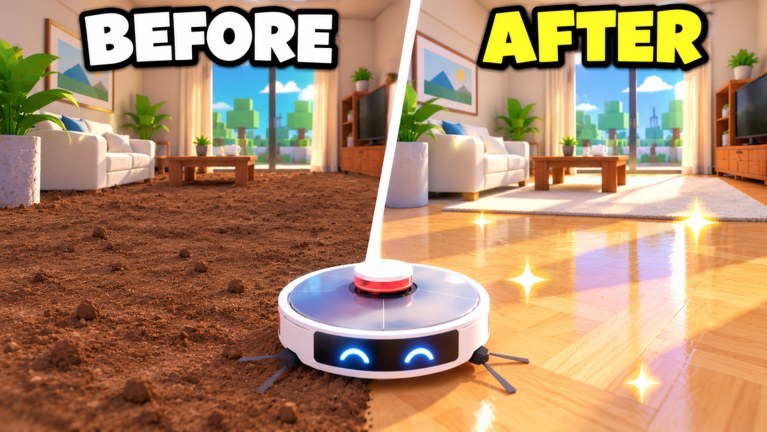
Be a Cleaning Robot uses familiar Roblox movement layered with a vacuum simulator loop: drive over dust, watch your container fill, path back to a dock, empty for cash, then resume cleaning. This page is a best-effort controls guide for PC, mobile, and console. Exact bind names can vary with Roblox settings, controller remaps, and future patches—always confirm prompts in your build. Pair this with Getting Started for the economy loop and Room Cleaning for how you steer through furniture clutter.
Shared goals on every platform
Whatever device you use, you are trying to do four things smoothly:
- Move your robot through dusty floors without getting stuck on props.
- Keep the camera readable so you can spot leftover dust in corners.
- Notice when the container is full before you waste travel time.
- Path to the dock, empty, and return without losing orientation in multi-floor places.
If any of those feel clumsy, fix camera sensitivity and movement first. Upgrade spending cannot fix a camera that never looks under tables. When you are ready to spend, follow Upgrades.
PC / keyboard and mouse
Typical Roblox desktop defaults apply:
| Action | Common default |
|---|---|
| Move | WASD |
| Camera | Mouse look / right-mouse drag depending on shift-lock and camera mode |
| Jump | Space |
| Interact / prompts | E or click proximity prompts |
| Shift lock (optional) | Left Shift (if enabled in Roblox settings) |
| Zoom | Mouse wheel |
Vacuuming on PC is usually automatic while you drive over dust—there is no separate “hold to suck” button in most sessions, but watch on-screen prompts if a tutorial asks you to toggle a tool. Treat movement itself as the vacuum path. Strafe along baseboards with A/D while keeping W pressed so you hug walls where leftover dust hides.
Dock emptying is typically a proximity prompt at the dock pad. Drive onto or beside the dock until the prompt appears, then press the interact key. Wait for the container to clear and cash to register before you sprint away.
PC tips:
- Lower mouse sensitivity slightly in dense furniture rooms so micro-adjustments along couches are easier.
- Use shift lock if you prefer tank-style facing while tracing lawnmower lanes.
- Zoom out just enough to see doorways and the dock direction without losing floor dust visibility.
- Bind comfort matters more than flashy remaps; keep interact on a key you can hit without stopping WASD flow.
Mobile / touch
Mobile players use the on-screen thumbstick and camera drag:
| Action | Typical mobile control |
|---|---|
| Move | Left virtual joystick |
| Camera | Drag on the right side of the screen |
| Jump | Jump button |
| Interact | Tap the on-screen proximity button when it appears |
Vacuuming still follows your path. The hard part on phones is camera discipline. Drag the view down toward the floor when hunting the last 5% of a room, then tilt up when you need to find the dock exit. Over-zoomed first-person-style views make docks easy to miss in tall atriums.
Mobile tips:
- Play in landscape for a wider dock sightline.
- Keep thumbs relaxed; death-gripping the stick causes oversteer into walls and wasted suction time.
- When the container is nearly full, stop vacuuming side rooms and make a clean line to the dock before you tap anything else.
- If UI buttons cover a corner you need to clean, briefly adjust camera angle instead of driving blindly into the HUD.
After a few dock runs, mobile players often benefit most from speed upgrades because thumbstick paths are less precise than WASD lanes—see Upgrades.
Console / controller
Console follows Roblox gamepad patterns:
| Action | Typical gamepad control |
|---|---|
| Move | Left stick |
| Camera | Right stick |
| Jump | A / Cross (platform dependent) |
| Interact | X / Square or the on-screen prompt button |
| Pause / Roblox menu | Options / Menu button |
Exact face-button labels differ between Xbox, PlayStation, and other licensed pads. Trust the in-game prompt icon over this table when they disagree.
Controller tips:
- Lower right-stick sensitivity for precise edge cleaning along cabinets.
- Use gentle left-stick pressure for “creeping” over the last dust clusters instead of full tilt sprints.
- Practice dock approaches in the starter apartment until you can empty without circling the pad.
- If vibration or dead zones feel off, adjust them in Roblox or system settings rather than fighting the stick in late places.
The vacuum–dock control loop
Independent of platform, build muscle memory for this sequence:
- Enter a dusty room with a clear exit plan toward the dock.
- Trace overlapping lanes so you do not leave stripes of dirt.
- Glance at the container meter every few seconds—not only when it is already full.
- When the meter is high, disengage from side clutter and path to the dock on the shortest safe route.
- Trigger empty, confirm cash, then return to the unfinished room.
Players who “feel slow” often have fine suction but poor dock routing. Controls practice is really route practice. Larger places in the Places Guide punish bad dock memory harder than the starter flat.
Camera habits that raise clean percentage
Hitting 100% is a camera skill as much as a movement skill:
- Sweep low angles along skirting boards and under tables.
- Orbit pillars and kitchen islands; dust often sits on the far side of the first view.
- After you think a room is done, do a slow perimeter lap with the camera aimed at floor edges.
- In multi-level homes, check landings and stair sides before you declare the floor finished.
When you are stuck at 99%, do not spam random driving—change camera height and repeat a perimeter. Details live in Room Cleaning.
Quality-of-life settings worth checking
Inside Roblox settings (not unique to this experience, but important here):
- Graphics level: lower it if dust particles or large mall interiors tank your frame rate; smooth movement helps cleaning more than max shadows.
- Camera mode: choose the mode that lets you see the floor while turning corners.
- Performance on mobile: close background apps before long Galaxy Mall sessions.
In-experience, learn where the upgrade menu, robot select, quest log, and daily claim buttons sit so you are not hunting UI mid-event. Surprise mess events punish players who cannot find the dock UI under stress.
Accessibility and comfort
If analog precision is hard, prioritize container and speed so you take fewer ultra-precise micro-paths per cash dump. Play with friends for the +10% cash bonus so you progress even at a calmer pace—servers allow up to 10 players. There is no requirement to sweat every frame; saved room progress means you can clean in short accessible sessions.
Troubleshooting input issues
- Prompt will not appear at dock: Get closer, jump once onto the pad, or slowly circle the dock collider. Another player standing on the exact spot rarely blocks forever—reposition.
- Dust not collecting: Confirm you are on the dusty surface, container is not already maxed, and you are not stuck on a prop collider above the floor.
- Camera flips in tight bathrooms: Zoom out and use slower stick/mouse input; reverse out instead of spinning in place.
- Mobile button covers the interact prompt: Rotate camera so the prompt moves, or briefly release the stick and tap.
After controls feel good
Once movement and dock emptying are automatic, shift focus to earnings and unlocks: finish the starter place, spend cash wisely, and plan toward rebirth only when ready (How to Rebirth). Check Codes and Scripts for status (no confirmed public codes or major script listings yet), watch the Tier List when you unlock new robots, and skim Updates if a patch remaps prompts. Return to the Guides Hub whenever you need the full tutorial set.
Frequently Asked Questions
Quick answers for Be a Cleaning Robot players.
Is there a special vacuum button?
On most sessions vacuuming follows your movement over dust automatically. Always obey on-screen tutorial prompts if your build asks you to toggle a tool or interactable.
How do I empty the container?
Drive to a dock until the proximity prompt appears, then use your platform interact control (often E on PC, tap on mobile, or the shown gamepad face button). Confirm the container clears before leaving.
Why do I keep missing the last dust on mobile?
Tilt the camera toward the floor and run a slow perimeter lap. Thumbstick oversteer skips edges; creep along baseboards and check the far side of furniture.
Do console players need different upgrades?
Not required, but many controller users value speed and container early because precise stick cleaning is slower than mouse lanes. Match upgrades to how you actually drive.
What if my controls feel different after a Roblox update?
Roblox client or experience patches can change prompts. Re-check in-game hints and the Updates hub rather than assuming this page’s default table is absolute.